
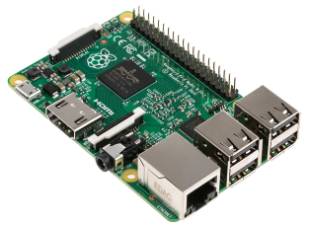
How about a Raspberry PI 2 as a firewall?
August 26, 2015
· admin
Unix
Raspberry PI
Wheezy
Networking
A Raspberry PI 2 performs as expected exceptionally well as a firewall. The download throughput achieved was 33 Mbits/sec under the same test conditions as the previous test (see Can A Raspberry PI Be Used As A Firewall? for more details). The CPU usage was about 5% during the download test. The CPU usage was around 2% while performing the upload test.
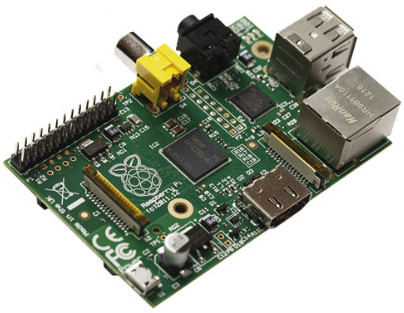
Can a Raspberry PI be used as a firewall?
August 25, 2015
· admin
Raspberry PI
Wheezy
Networking
Can a Raspberry PI be used as a firewall? This question comes back often. Well, I have tested it. The test conditions are:

Octoprint and Cura Disk Image for the Raspberry Pi (Version 2015-03-15)
March 16, 2015
· admin
Raspberry PI
Wheezy
3D Printing
Cura
Octoprint
Cura integrated with Octoprint brings your 3D printer to the next level. You can download from HERE a fully functional image of Cura integrated with Octoprint. Simply copy this image to an SD-card of 4GB or more. Instruction to copy an image on an SD-card is given on this PAGE. You will need to unzip this file prior copying the image to the SD-card.
A 4 GB SD-card will give you about 1.2 GB of free space to upload your models after expanding the filesystem. Be aware that some folders are hidden. Make sure you display them.
This image is based on the following:
Octoprint and Cura Disk Image for the Raspberry Pi
January 5, 2015
· admin
Raspberry PI
Wheezy
3D Printing
Cura
A newer version is available HERE
Cura integrated with Octoprint brings your 3D printer to the next level. You can download from HERE a fully functional image of Cura integrated with Octoprint. Simply copy this image to an SD-card of 4GB or more. Instruction to copy an image on an SD-card is given on this PAGE. You will need to unzip this file prior copying the image to the SD-card.
A 4 GB SD-card will give you about 1.2 GB of free space to upload your models after expanding the filesystem. Be aware that some folders are hidden. Make sure you display them.
This image is based on the following:
Accessing a serial port from a web server
May 18, 2013
· admin
Ubuntu 11.10
Unix
Ubuntu 11.04
Ubuntu
Raspberry PI
Wheezy
Ubuntu 12.04
On most Linux distribution, it is impossible to access a serial port (ex. /dev/ttyS0) from a web server such as Apache or lighttpd using a cgi. Simply add the user under which the web server runs (www-data for example) to the group dialout. To do so, use vigr from the command line and add the user on the dialout group line. Such a line will typically look like:
Recording a terminal session under Linux
August 12, 2012
· admin
Ubuntu 11.10
Unix
Ubuntu 11.04
Ubuntu
Linux
Raspberry PI
Wheezy
It is possible to record a terminal session under Linux with ttyrec. It also records vi, emacs, etc. sessions.
Fisrt, install ttyrec

A step by step guide to setup a Bluetooth keyboard and mouse on the Raspberry PI
August 9, 2012
· admin
Linux
Debian
Raspberry PI
Wheezy
A lot of people is having problem setting up a Bluetooth keyboard and mouse on the Raspberry PI. Things get more complicated when your wired keyboard or mouse does not work or prevent your Bluetooth dongle from working. There is hope. This step by step procedure will let you install them or at a minimum let you know what does not work. It uses only the command line interface. It is targeted for the Wheezy Debian distribution.
Initializing A Wireless Connection At Boot Time
August 5, 2012
· admin
Debian
Raspberry PI
Wheezy
You can initialize your Raspberry PI wireless connection automatically at boot time if the instructions given in a previous post entitled How To Setup A Protected Wireless Connection Via The Command-Line worked. This is pretty straight forward. You must be root to carry out these instructions.
Save the wpa.conf file created in the previous post somewhere on the SD card you use to boot the system. For example in /root/bin/wpa.conf.
Create the following script and save it in a file called /root/bin/initWiFi for example
How To Setup A Protected Wireless Connection Via the Command-Line
Setting up a wireless connection via the command line may vary depending on the USB Wireless Interface you are using. These instructions also work for the Raspberry PI running Wheezy. You must be root in order to carry out these instructions.
Make sure that your wireless interface is recognized.
Tags
- All
- 3D Printing
- ABS
- Android
- apache
- Arduino
- ARPI600
- ASUS
- automation
- Battlefield
- Blogroll
- Certificate
- Chrome
- Cree
- Cura
- Database
- Debian
- Eclipse
- Electronic Component
- ESP8266
- Firewall
- Games
- GCode
- General
- GIT
- GitHub
- GO2NFC
- Handbrake
- Hardware
- Internet of Things
- IoT
- Java Applets
- Linux
- MAC OS X
- Management
- Mantis
- Marlin
- memcache
- Mountain Lion
- MySQL
- Networking
- NodeMCU
- NVIM
- object
- Octoprint
- openssl
- Photos
- PHP
- phpMyAdmin
- PN532
- postfix
- Prusa Mendel
- Ralink
- Raspberry PI
- RaspberryPI
- Raspbian
- Router
- RT5572
- SSH
- STM32
- Tomcat
- Trinket
- Ubuntu
- Ubuntu 11.04
- Ubuntu 11.10
- Ubuntu 12.04
- Ubuntu 14.04
- Ubuntu 15.04
- Ubuntu 20.04
- Unity
- Unix
- Video
- Virtual Box
- Wheezy
- WiFI
- Windows
- Windows 8
- Wink
- WordPress